Broadcasting your screen to XO laptops
The Activity Turtle Art can be used to broadcast an OLPC XO laptop's screen to other laptops.
In a shared session, images are reproduced on all laptops from TurtleArt V106. Enter the following code in Pippy and save:
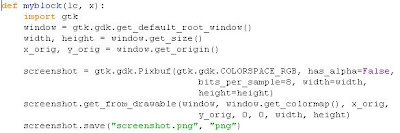
Run the following code on the sending XO laptop in Turtle Art, click the Python block to load the Python code:
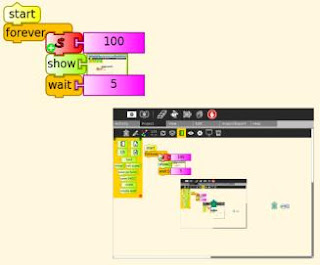 The Media block points to the screenshot image
["journal", "/home/olpc/Activities/TurtleArt.activity/screenshot.png"]
Either use this TurtleArt file , hand edit the Media block in a word processor or first run Turtle Art in Gnome (which has a file chooser instead of a journal object chooser) to set the Media block to the screenshot image.
All other laptops in the shared session will receive a screenshot every 5 seconds of the sending laptop's screen, whatever it is showing (but not the mouse cursor). Below the received image of the sending laptop's home view.
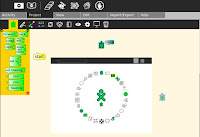
The image size and the sending interval are adjustable on the sending laptop with draggable blocks, experiment for the best results on your network.
Programming challenges:
In a shared session, images are reproduced on all laptops from TurtleArt V106. Enter the following code in Pippy and save:

Run the following code on the sending XO laptop in Turtle Art, click the Python block to load the Python code:
 The Media block points to the screenshot image
["journal", "/home/olpc/Activities/TurtleArt.activity/screenshot.png"]
Either use this TurtleArt file , hand edit the Media block in a word processor or first run Turtle Art in Gnome (which has a file chooser instead of a journal object chooser) to set the Media block to the screenshot image.
All other laptops in the shared session will receive a screenshot every 5 seconds of the sending laptop's screen, whatever it is showing (but not the mouse cursor). Below the received image of the sending laptop's home view.

The image size and the sending interval are adjustable on the sending laptop with draggable blocks, experiment for the best results on your network.
Programming challenges:
- Add a mouse cursor
- break the image up into tiles and only transmit changed tiles
posted by Unknown at 12:38 PM
1 comments


